You must first be identified as someone’s delegate before you can act on her/his behalf. Visit the Identifying Delegates guide for employee delegation, or the Adding Concur Delegates for Non-Employees guide for non-employee delegation details.
Terminated Users: Upon a user's termination date, delegates will retain access for 6 weeks (42 days). After 6 weeks, banking information is purged from Workday, and submission of travel requests and expense reports is no longer permitted. If you have any questions about reactivating a profile, please file a service desk ticket.
How to Act as a Delegate
Click your Profile menu (icon with your initials) in the upper right of your screen. Click on Act as Another User and then select the A Delegate for another user who has granted you this permission option. Use the search box to find the desired delegator by name or employee ID and click on their name.
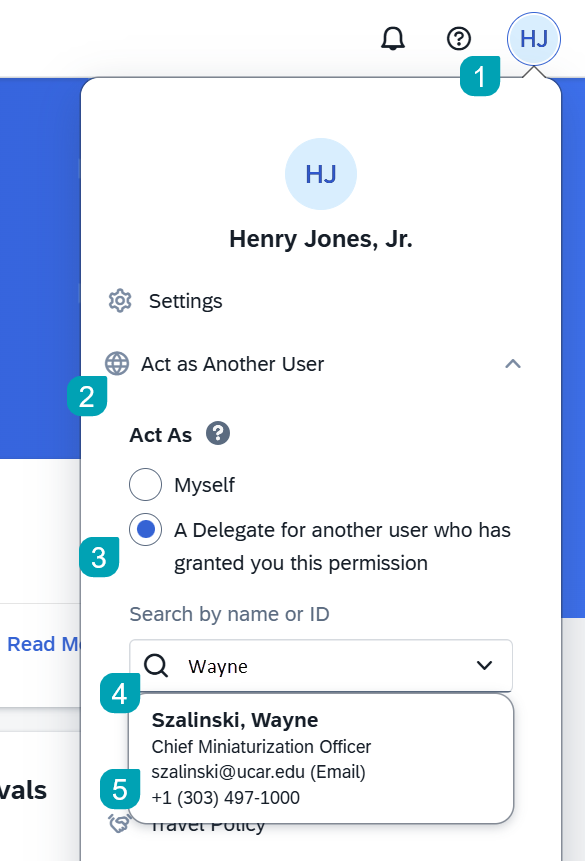
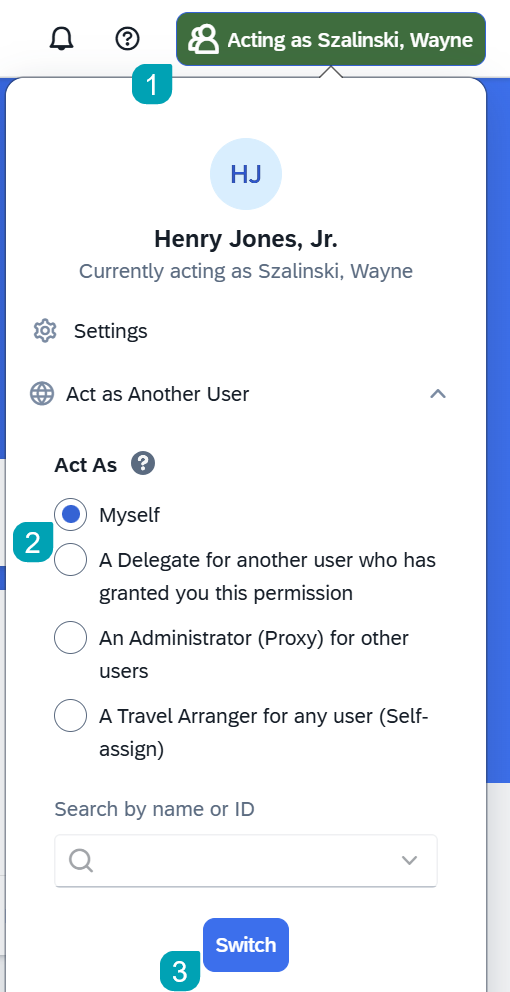
Click on the blue Switch button to start acting as them. A green box appears in the upper right of your screen displaying the name of the individual on whose behalf you are acting.

To end your delegate session, select the Acting as menu (green box in the upper right of your screen), select Myself, and click Switch.
Prepare a Report for Another Employee and Send It for their Review
While acting as the employee for whom you are a delegate, add expenses, allocate them, attach receipts and other documents, and add comments as you would for your own expense report.
Once you are finished preparing the expense report, use the Ready for Review button to notify the employee to review and submit it:
a. Click the Ready for Review button.

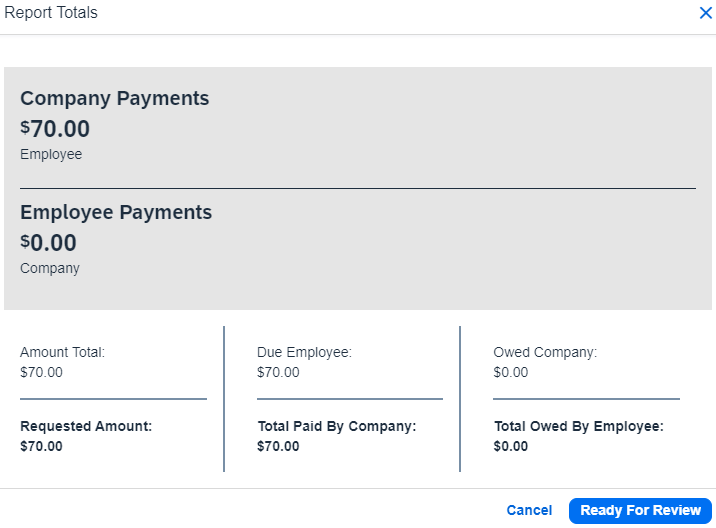
b. Confirm the report totals and then click Ready for Review again.
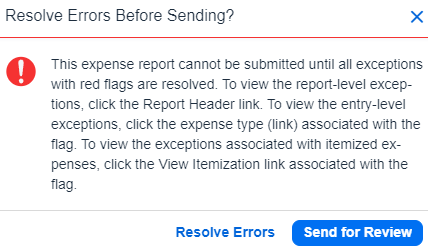
c. If there are any exceptions preventing submission of the report, a dialog box will appear with the option to review and resolve the errors prior to marking the report ready for the employee’s review or to send it for review anyway, without resolving the errors.
d. If no exceptions are preventing submission, the screen shows a confirmation that an email notification has been sent to the employee.

e. If edits are needed before the employee has submitted the report for approval, you may use the Not Ready for Review action button to cancel the employee’s review and return the report to you for further editing.

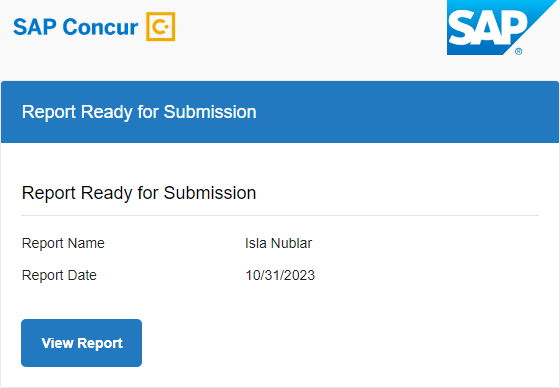
The employee receives the notification email with a link directly to the report in Concur.
Once the report has been submitted, it may still be recalled for further editing (as long as it is not yet fully approved) using the Recall Report button.

