Table of Contents
What is a Delegate?
A delegate is an individual authorized to act on behalf of another person.
In Concur, there are four types of delegates:
Prepare Delegates
Prepare Delegates can create travel requests, create expense reports, and/or book travel on the employee’s behalf. Frequently, Travel Coordinators act as delegates for those they support.
Approve Delegates
Approve Delegates can approve travel requests and/or expense reports on the approver’s behalf.
Preview Delegates
Preview Delegates can review travel requests and/or expense reports for an approver. The Preview Delegate can either send back the request/report to the employee or notify the approver that they have reviewed it. The approver will still need to approve the travel requests and/or expense reports.
Reporting Delegates
Reporting Delegates have the same full access to the reporting functionality in Concur as the reporting lead named by the lab/program. For details about reports in Concur, visit the Reporting on Concur webpage. Note: Only two individuals can be identified as Reporting Delegates per reporting lead.
A delegate can be assigned to more than one employee and can hold multiple delegation roles. In Concur, delegation is not policy or funding specific. In other words, Prepare Delegates can process every type of expense report (Travel, Payment Request, and P-Card) on the employee’s behalf. In addition, Approve Delegates can approve for all accounts on the approver’s behalf. It is up to you and your delegate to identify guidelines, if needed, for when your delegate acts on your behalf.
Delegates for employees can only create expense reports; they cannot submit them on the employee's behalf. Employees must submit their own reports. Visit the Submitting Expense Reports guide for details.
Accessing Your Delegates Page
Go to https://concur.ucar.edu and log in using your CIT credentials. You may want to bookmark this link for quick access to Concur next time – visit the Bookmarking Concur guide for details.
Click your Profile menu in the upper right corner of your screen and then on Settings.
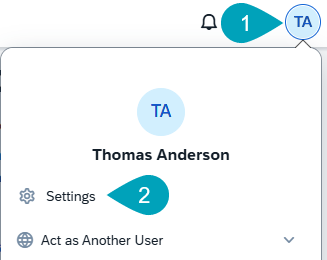
Click either the Request Delegates or Expense Delegates link (both links take you to the same delegates list). If you already have delegates identified, they will appear here.
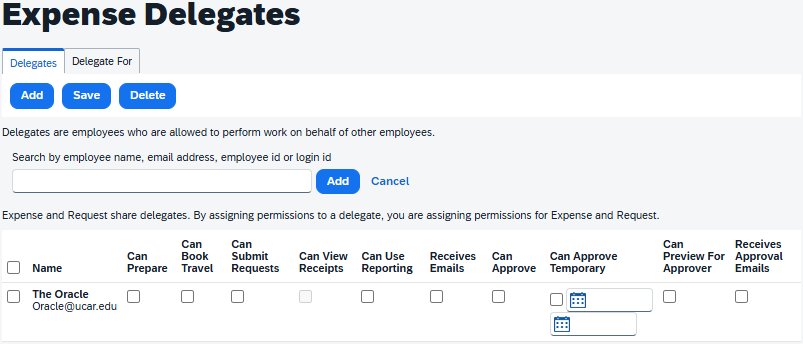
The Expense Delegates page:
Adding Prepare Delegates
Click the Add button.
Search for the employee you wish to add as your delegate, and select them from the resulting list. You can search by name or email address.
Check the following boxes:
- Can Prepare - The Can View Receipts box is automatically checked.
- Can Book Travel - Check this box if you would like your delegate to be able to book travel on your behalf.
- Can Submit Requests - Check if you would like your delegate to be able to submit travel requests on your behalf.
- Receives Emails - This allows your delegate to receive emails regarding your Concur tasks – such as status changes, request/report returns, and reminders. Your ability to receive these emails is not affected by checking this box.
Click the Save button. A confirmation message appears.
Adding Approve Delegates
Click the Add button.
Search for the employee you wish to add as your delegate, and select them from the resulting list. You can search by name or email address.
Remember: You are responsible for anything your delegate approves on your behalf.
Check the following boxes:
- Can Approve or Can Approve Temporary - Use the latter if you would like to define start and end dates for the delegation. The Can View Receipts box is automatically checked.
- Receives Approval Emails - This allows your delegate to receive emails regarding your Concur approval tasks – such as pending approvals and reminders. Your ability to receive these emails is not affected by checking this box.
Click the Save button. A confirmation message appears.
Adding Preview Delegates
Click the Add button.
Search for the employee you wish to add as your delegate, and select them from the resulting list. You can search by name or email address.
Check the following boxes:
- Can Preview for Approver - The Can View Receipts box is automatically checked.
- Receives Approval Emails - This allows your delegate to receive emails regarding your Concur tasks – such as status changes, request/report returns, and reminders. Your ability to receive these emails is not affected by checking this box.
Click the Save button. A confirmation message appears.
Adding Reporting Delegates
An Intelligence reporting license is required, which can be obtained by submitting a Request for Access. License holders may assign up to two reporting delegates, who then see the Intelligence option when acting as the delegator.
Click the Add button.
Search for the employee you wish to add as your delegate, and select them from the resulting list. You can search by name or email address.
Check the Can Use Reporting box.
Click the Save button. A confirmation message appears.
Deleting Delegates
Locate the delegate you want to remove.
Check the box to the left of the individual’s name.
Click the Delete button.
A pop-up message appears for verification. Click the OK button. A confirmation message appears.
