Requesting Travel Overview
When is a travel request required?
A travel request is required for UCAR business travel when traveling more than 150 miles from the traveler's primary work location and/or staying overnight. This applies to all travel by UCAR employees, regardless of who is paying for the trip, and for all non-employee (visitor/participant) travel paid with UCAR funds. Travel requests should be fully approved before travel begins.
Also, an approved travel request is required before booking travel within Concur or through Cain Travel (UCAR’s approved travel management company). See the Travel Procedures for details.
Local Travel
Local travel is 150 miles or fewer from the traveler’s primary work location and without an overnight stay. A travel request is not required for local travel.
Remember: Do not enter any sensitive or personally identifiable information (e.g., birthdates, social security numbers, or bank account numbers) into travel request or expense report fields. Use the dedicated fields in your profile (e.g., Date of Birth, Passport Number) for this information.
You can add a second, optional approver to all of your travel requests if needed. This approval will occur after supervisor approval and before account key (cost object) approval. Submit an NCAR/UCAR Service Desk ticket to add a second travel request approver.
Step-by-Step Requesting Travel Guide
Creating a Travel Request
Completing the Request Header
Access Concur. If you are not automatically logged in, log in with your UCAR SSO credentials. (You may want to bookmark this link for quick access to Concur next time – visit the Creating Bookmarks to Concur guide for details.)
Act as a delegate if entering this travel request on someone’s behalf. Refer to the Acting as a Delegate guide for details.
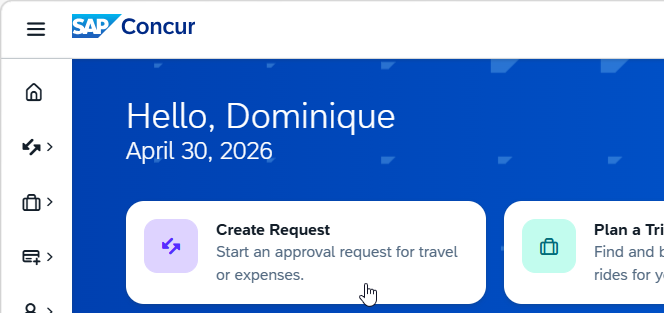
Start a travel request. There are a couple of ways to do this. One of the fastest is to use the task buttons along the top of your Concur home page. Click Create Request.
The Request Header appears.
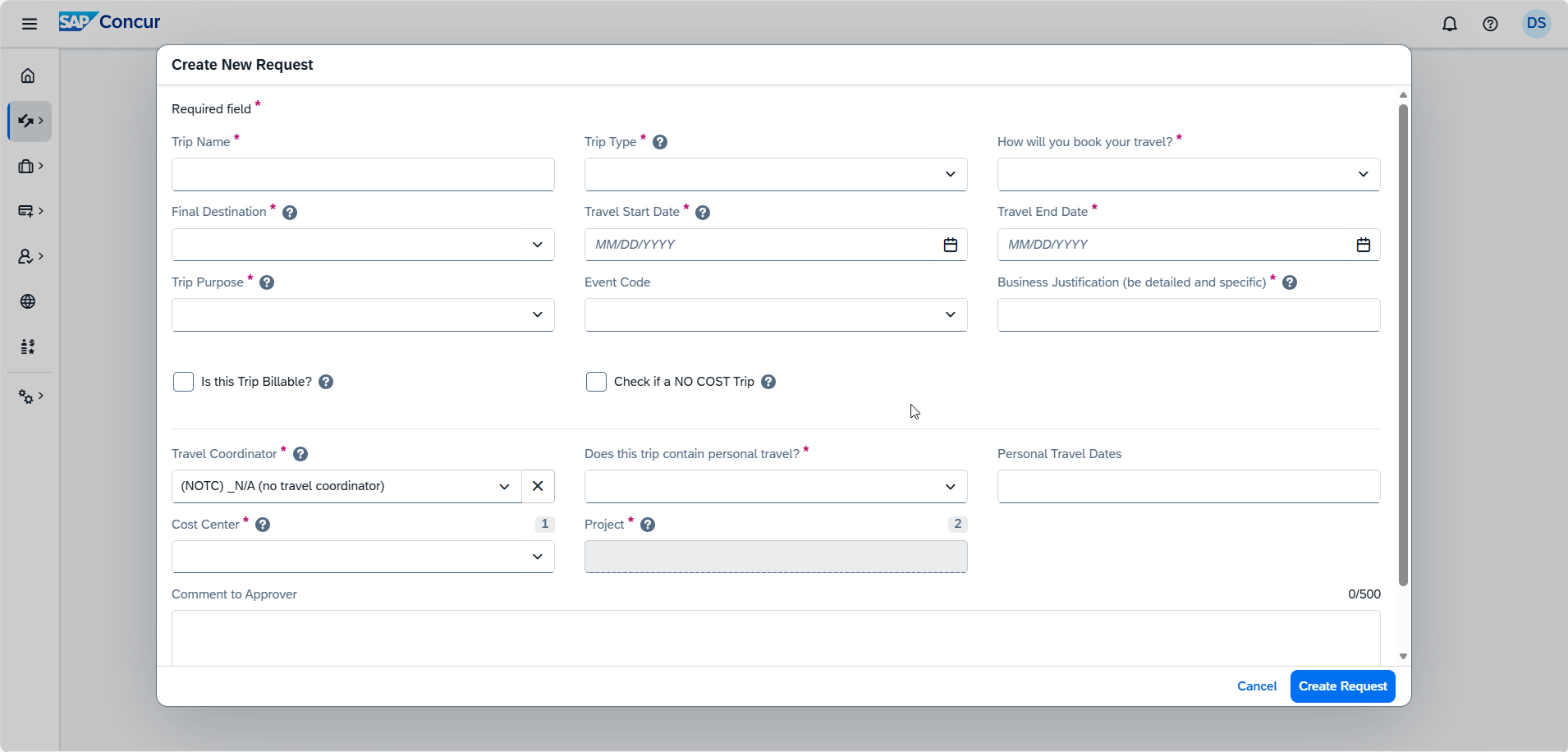
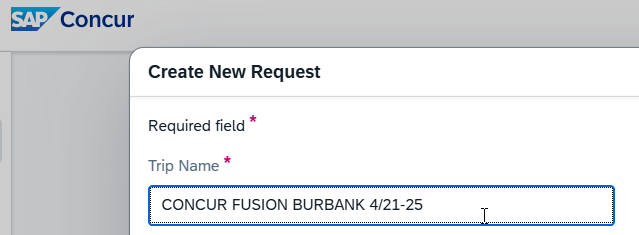
Enter a descriptive Trip Name. We recommend including the destination and trip dates in the trip name, along with the conference name (such as AGU) if applicable.
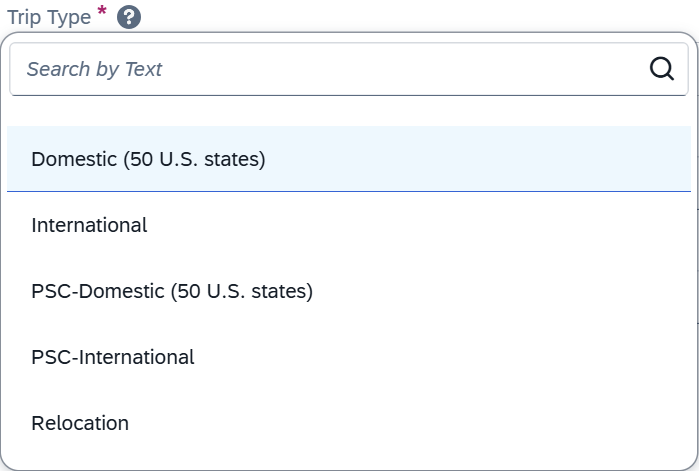
Select your Trip Type. This will determine the spend categories to which this request will be obligated. Note: Travel outside the 50 United States is considered international, regardless of the traveler’s home country.
Select how the trip will be booked.
- In Concur: Using the Travel module in Concur.
- Through Cain Travel: Travel agent-assisted bookings. Especially helpful for complex trips or group travel. An additional agent fee will apply to your booking.
- Outside of Concur/Cain: Using another method to book than Concur or Cain, such as Travelocity or Expedia.
- No Booking: No booking is needed, such as when driving for the entire trip.
Enter the Final Destination. If traveling to multiple destinations, enter the farthest location.
Enter the Travel Start Date and Travel End Date. If your trip includes personal travel dates, be sure to incorporate those into your start and end dates. You can use the calendar (icon on the right side of the field) or enter manually as mmddyyyy.
Select the Trip Purpose.
Enter the Event Code, if applicable. You can search by the code or the event title. If searching by code, click in the field and then select Code from the drop-down menu. Visit the Event Codes in the Visitor and Event Application guide for details about adding or editing event codes.
Enter the Business Justification. If more than 48 characters, enter “See attached” and attach to the request after saving the header.
Check the Is this Trip Billable? box, if applicable. Check this box if an organization outside of UCAR/NCAR will pay for all or part of this trip, even though UCAR is paying for the trip expenses initially.
If this is a No-Cost trip, instead refer to Billable and No-Cost Travel for guidance.
If you are the traveler, select “N/A (no Travel Coordinator)” from the Travel Coordinator dropdown. If someone other than the traveler is entering this request, select your name from the Travel Coordinator drop-down menu. If you are a travel coordinator and your name is not listed, submit an NCAR/UCAR Service Desk ticket to request the addition of your name.
Select whether this trip will contain personal travel and, if so, enter the dates in the Personal Travel Dates field.
Enter the Cost Center and then select the Project. The entire trip will be obligated against this Cost Center and Project unless the expenses are allocated (done in a later step).

Provide comments to the approver(s), if needed.
Click Create Request.
Optional: Use Request Assistant to quickly and easily estimate expected expenses. See Estimating Travel Costs Using Request Assistant for details.
Request Assistant is a feature in Concur Request that uses generative AI and benchmark data to provide intelligent travel cost estimates. This tool saves you time by eliminating the need for extensive manual research during the pre-trip approval process.
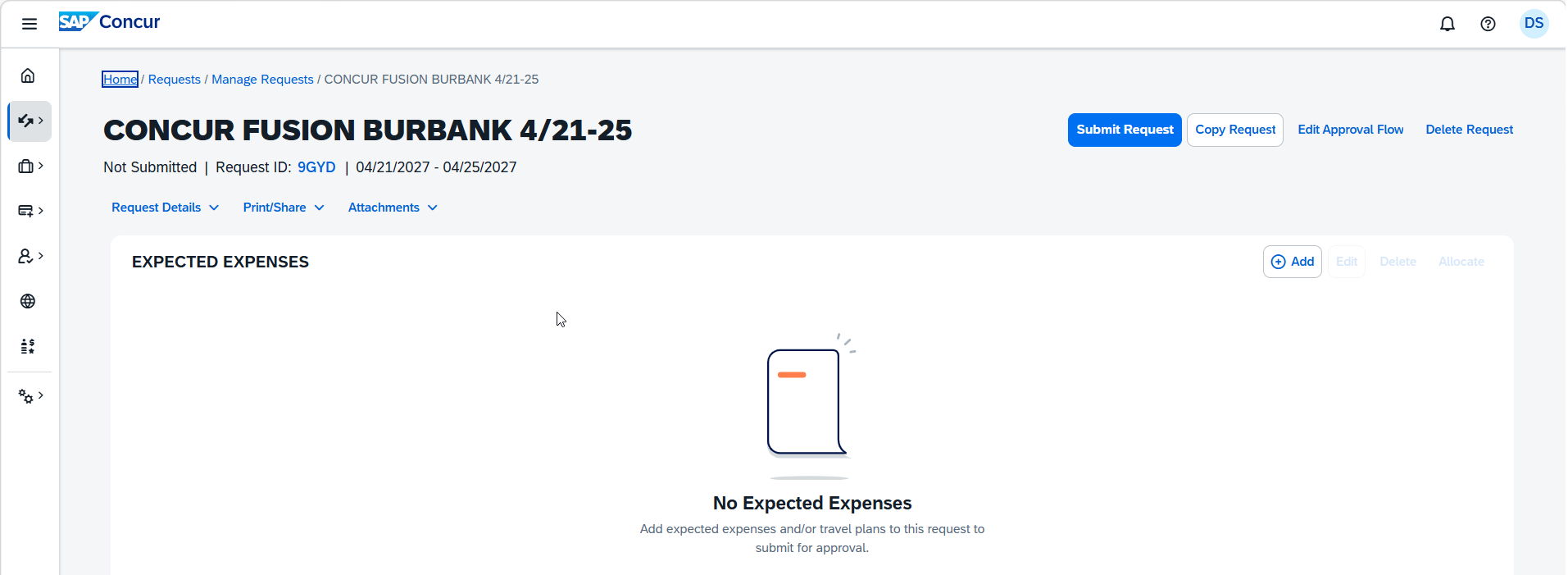
Your travel request is now created, and the Expected Expenses list will appear.
Entering Expected Expenses
Click Add on the right-hand side of the Expected Expenses header to add an expected expense.
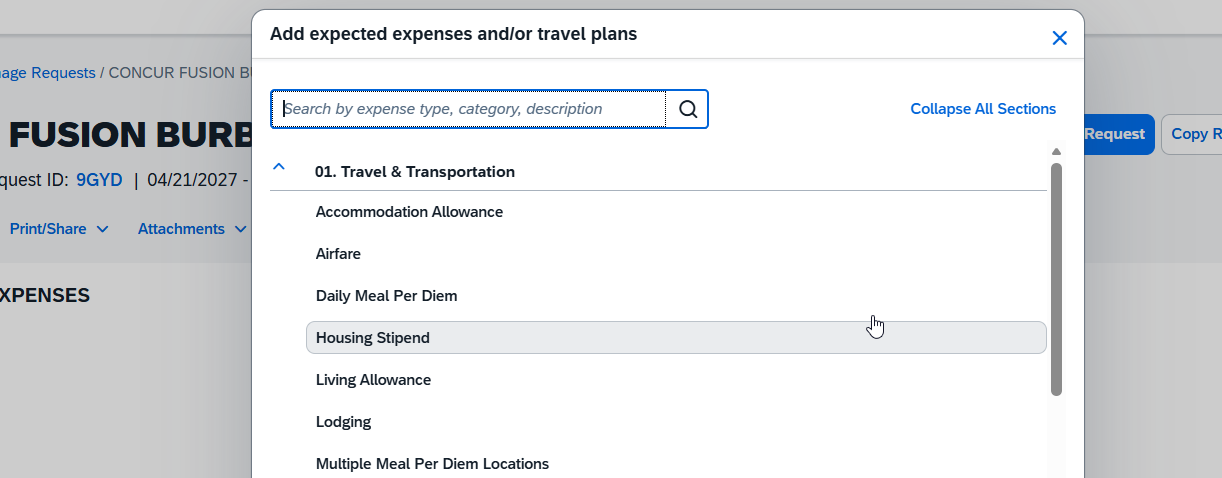
Search for or scroll to the desired expense type and click on it to open the expense entry and enter the required expense details. Click Save to save the expense entry. Continue adding expenses to complete the travel request. Frequent trip expenses include:
- Airfare
- Lodging (hotel)
- Rental Vehicle
- Rental Vehicle Fuel
- Conference Registration
- Taxi/Rideshare
- Personal Car - Mileage
- Daily Meal Per Diem (see next step below)
Enter daily meal per diem, if applicable.
- If traveling to one destination, click Add and select the Daily Meal Per Diem expense type from the list and then click Save.
- If traveling to multiple destinations, click Add and select the Multiple Per Diem Locations expense type from the list. Enter the Destination City, # of Days, and Trip Type, and then click Save. Repeat for each destination.
The per diem amount automatically calculates based on the Final Destination and Business Start and End Dates as entered on the Request Header.
Note: This is just an estimate for trip approval and obligation purposes. The actual per diem amount with provided meal exclusions is reconciled on the expense report after your trip concludes.
Allocating Expenses
Allocate expenses to obligate them to different projects than the one entered on the Request Header tab.
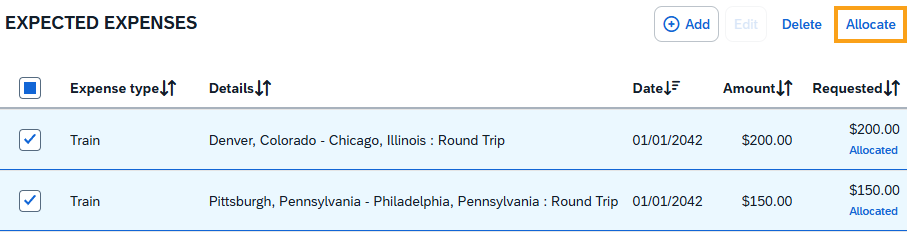
On the left-hand side of the expected expenses list, click the checkbox(es) for the expense(s) you would like to allocate and then click the Allocate button.
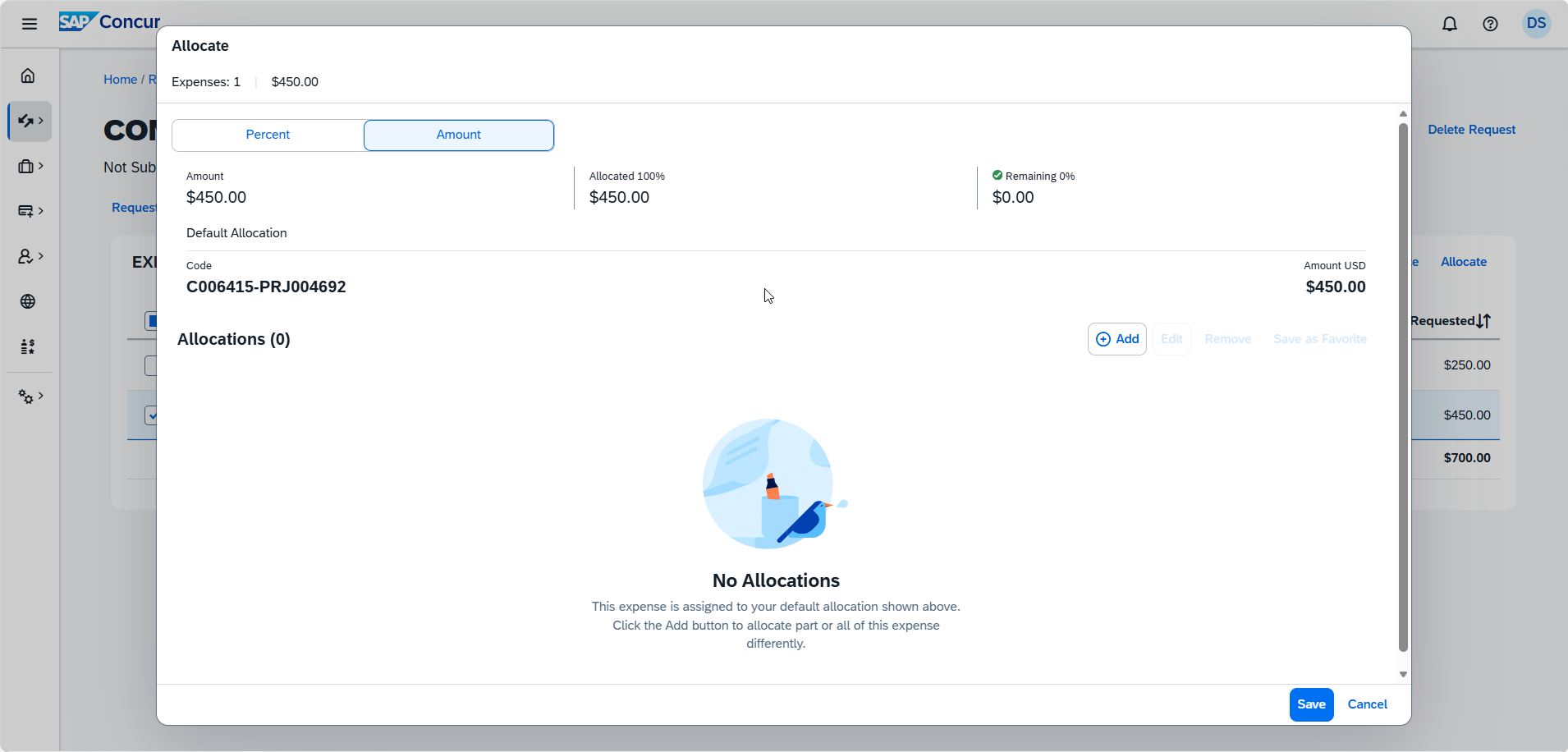
Click the Add button. The Add button is located in the upper right of the Allocate window.
Click the Add button to select a different Cost Center and Project to allocate the selected expenses to. If you have saved favorite allocations, you can select them by clicking on the Favorite Allocations tab. Continue adding as many worktags as needed.
Click on Percent or Amount to choose your allocation method.
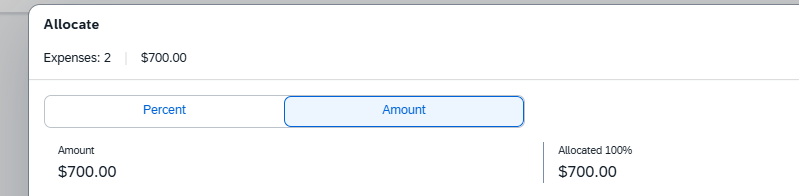
Note: If you do not allocate the full percentage or amount of the expense(s), the remainder will be applied to the Default worktag (the one you selected on the Request Header):
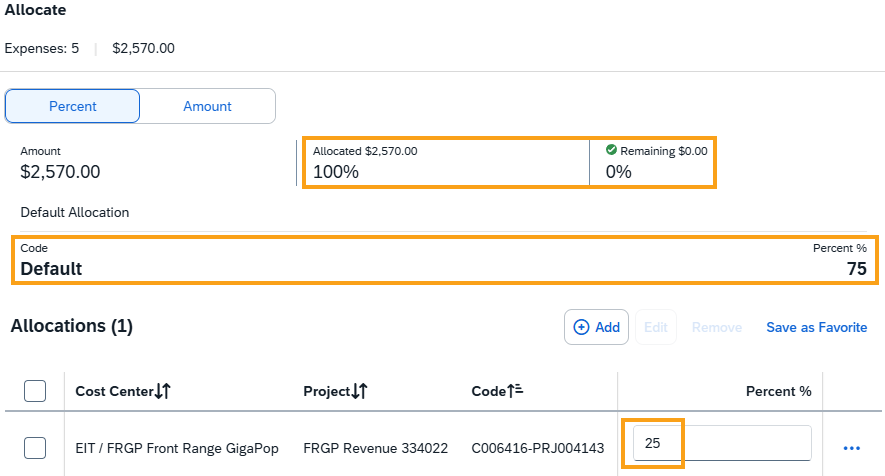
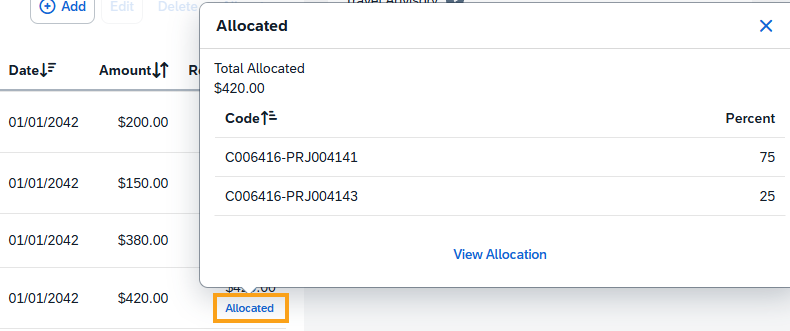
Click the Save button in the lower right of the window. Allocated expenses will display a blue Allocated link under the requested amount. Clicking on Allocated will display a window showing the allocation details.
Note: Expenses that don’t have the blue Allocated link will be allocated to the Cost Center and Project entered on the Request Header.
Cash Advances
If needed, request a cash advance by clicking Request Details > Add Cash Advance. See the Cash Advances article for details.
Supporting Documentation
You can attach additional documentation to this request, such as a detailed business justification, approval from an outside source, or an exception to procedure. To do so, use the Attachments dropdown to select Attach Documents.
Submitting the Travel Request
Send this request for approval by clicking the Submit Request button. Visit Approvals In Concur for details about the approval flow and how to add additional approvers.

You will be returned to your list of requests. Your current request will show a status of Submitted & Pending Approval. Each approver will receive an email notification when it is their time to approve the request. You can view progress in the Approval Flow by opening the request and clicking on Request Details > Request Timeline. The Request ID is needed to book this trip in Concur or through Cain Travel.
Once your travel request is fully approved, you may proceed to Booking Travel.
A travel request should be entered and fully approved before the trip occurs. If that doesn’t happen, it's considered an After-the-Fact travel request and requires an exception to procedure and executive approval. Attach to the travel request an exception to procedure justifying the after-the-fact request. The appropriate executive will automatically be added to the approval flow.
Related Articles
-
Add an Ad Hoc Approver to the Workflow (Enterprise IT Knowledge Base)
-
Airfare (Enterprise IT Knowledge Base)
-
Approvals (Enterprise IT Knowledge Base)
-
Approving Travel Requests (Enterprise IT Knowledge Base)
-
Billable and No-Cost Travel (Enterprise IT Knowledge Base)
-
Booking Travel (Enterprise IT Knowledge Base)
-
Cash Advances (Enterprise IT Knowledge Base)
-
Combining Business and Personal Travel (Enterprise IT Knowledge Base)
-
Completing Participant Profiles for Travel (Enterprise IT Knowledge Base)
-
Creating Concur Profiles for Participants (Enterprise IT Knowledge Base)
-
Estimating Travel Costs Using Request Assistant (Enterprise IT Knowledge Base)
-
Event Requests (Enterprise IT Knowledge Base)
-
Exceptions to Procedure (Enterprise IT Knowledge Base)
-
Expensing Travel (Enterprise IT Knowledge Base)
-
Issuing Visitor Stipends and Honoraria (Enterprise IT Knowledge Base)
