Notes on different OS versions:
- Windows is straightforward to do as an administrator
- iOS (iPhones and iPads) must be done using the Safari browser as Apple limits access
to other browsers to the OS core components - Android installs an application called JoinNow rather than a certificate directly and a
troubleshooting guide is here - https://cloud.securew2.com/public/guides/android/#/
For Windows
The certificate distribution website for Eduroam is
https://cloud.securew2.com/public/37533/UCAR_eduroam.
When you go to it, you should see that the operating system of your device is detected by the website, but if not, you can select the correct one using the dropdown list as shown below.

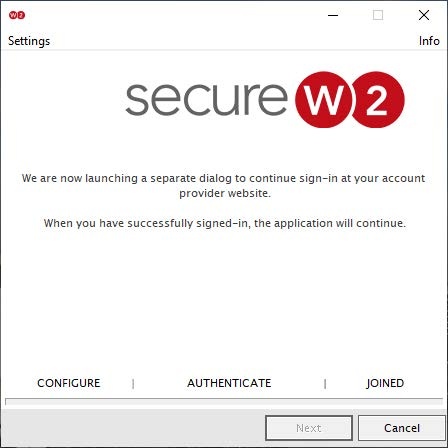
Once the correct operating system is selected, click JoinNow to continue the installation process. The next step is to download the application, and install it - the steps should be fairly straightforward assuming you have admin rights on the system and follow the instructions provided on the site.
For iPhone
Navigate to: https://cloud.securew2.com/public/37533/UCAR_eduroam
Note that it's best to use Safari and not Chrome.
You'll need to click on "Get connected to Eduroam".
Choose iPhone/iPad in the drop-down menu.
Enter your UCAR email address and click "JoinNow" to download the profile to your device.
When prompted, click "Allow."
Choose the device on which you wish to install the profile (if asked).
Once it's downloaded, go to the Settings app and tap on "Profile Downloaded" and then "Install."
Enter your passcode when prompted and then tap on "Install" again and then a third time.
Enter your CIT directory password when prompted and tap "Next."
Tap "Done" to complete the process.
For macOS
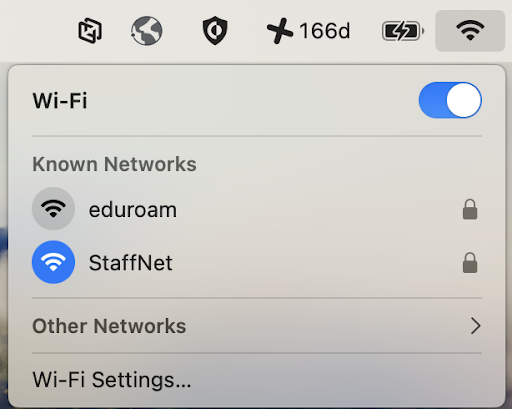
Eduroam is now included as a WiFi network, if available in your current location on UCAR macOS managed Macs. There is no need to install the eduroam software.
Simply select it, if available from the list of WiFi networks on your Mac.