| Table of Contents | ||||
|---|---|---|---|---|
|
| UI Text Box | ||||
|---|---|---|---|---|
| ||||
If you are an NCAR/UCAR visitor or contractor who uses your own device, please visit the CIT Password Portal to reset your password. |
New password requirements
Your new password must meet the following requirements.
Your new password must:
- not match one of your last 24 passwords
- not be similar to a common password
- not match one on a readily available list of compromised passwords
- contain an upper alpha character
- contain a lower alpha character
- contain a numeric character
- contain a special character
- not contain a keyboard pattern like qwerty
- not contain a character pattern like abcde
- not contain a repeating pattern like abcabc
- not contain a repeating character like aaa
- contain at least 9 characters
- contain at least 5 unique characters
You may not have to comply with all these rules if your password contains 15 or more characters.
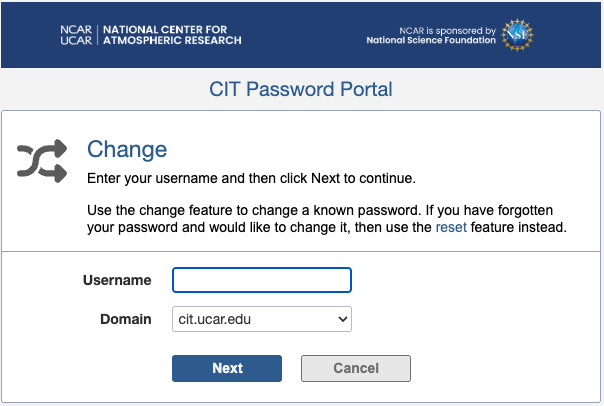
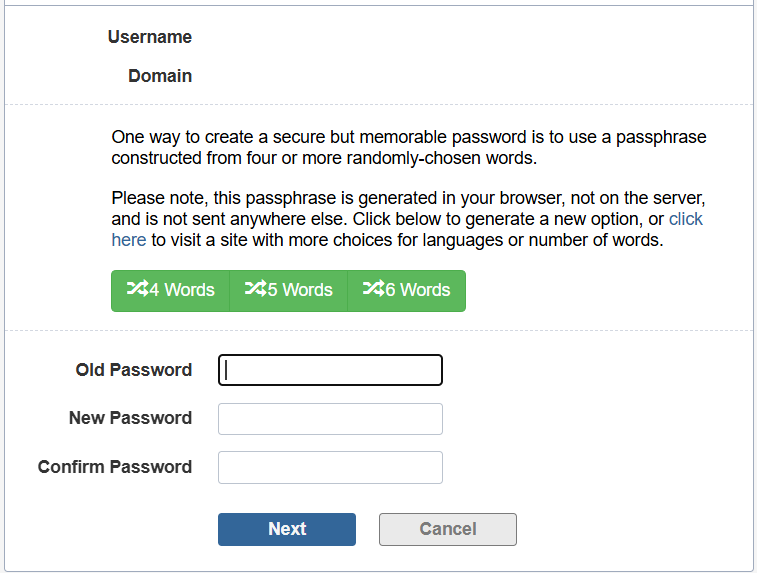
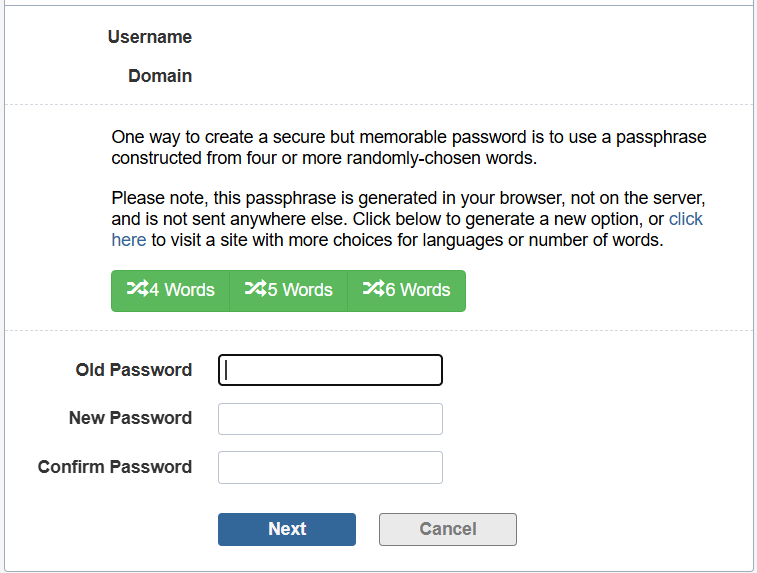
Change an existing password using CIT Password Portal
If you know your current password and want to change it, you can do so in the CIT Password Portal without being enrolled in this system.
| UI Text Box | ||||
|---|---|---|---|---|
| ||||
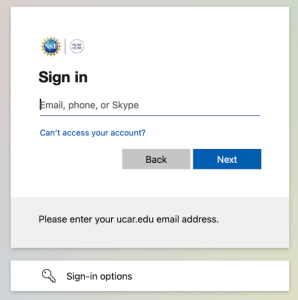
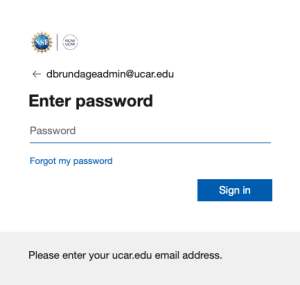
ATTENTION MAC USERS After resetting your CIT password in the password portal, follow the instructions for Resetting your local Mac password |
| UI Text Box | ||||
|---|---|---|---|---|
| ||||
If you cannot remember your password please contact the NUSD helpdesk
|
| UI Steps | ||||||||||||
|---|---|---|---|---|---|---|---|---|---|---|---|---|
| ||||||||||||
|



Resetting your local Mac password
| UI Text Box | ||||
|---|---|---|---|---|
| ||||
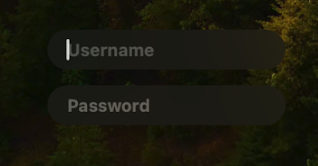
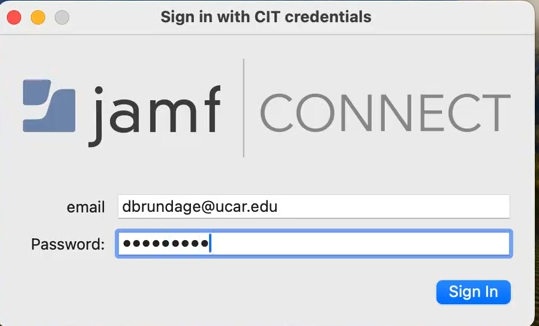
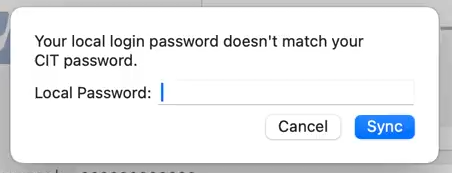
Please follow the above steps before proceeding. If you changed your password in the above steps on a device other than your Mac, follow the instructions for Resetting your local Mac password from another device |
| UI Steps | ||||||||
|---|---|---|---|---|---|---|---|---|
| ||||||||
|



Resetting your local Mac password from another device
| UI Text Box | ||||
|---|---|---|---|---|
| ||||
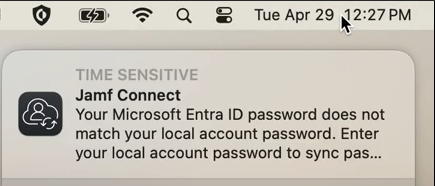
If you changed your CIT password using the password portal on another device and your Mac is currently turned off: Follow these steps the next time you turn on your Mac to sync the new password with your local Mac account. |
| UI Steps | ||||||||
|---|---|---|---|---|---|---|---|---|
| ||||||||
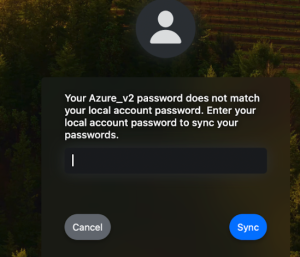
If there are no errors you will be logged in to the macOS. Now that your password is synced, going forward please use your updated password only. |