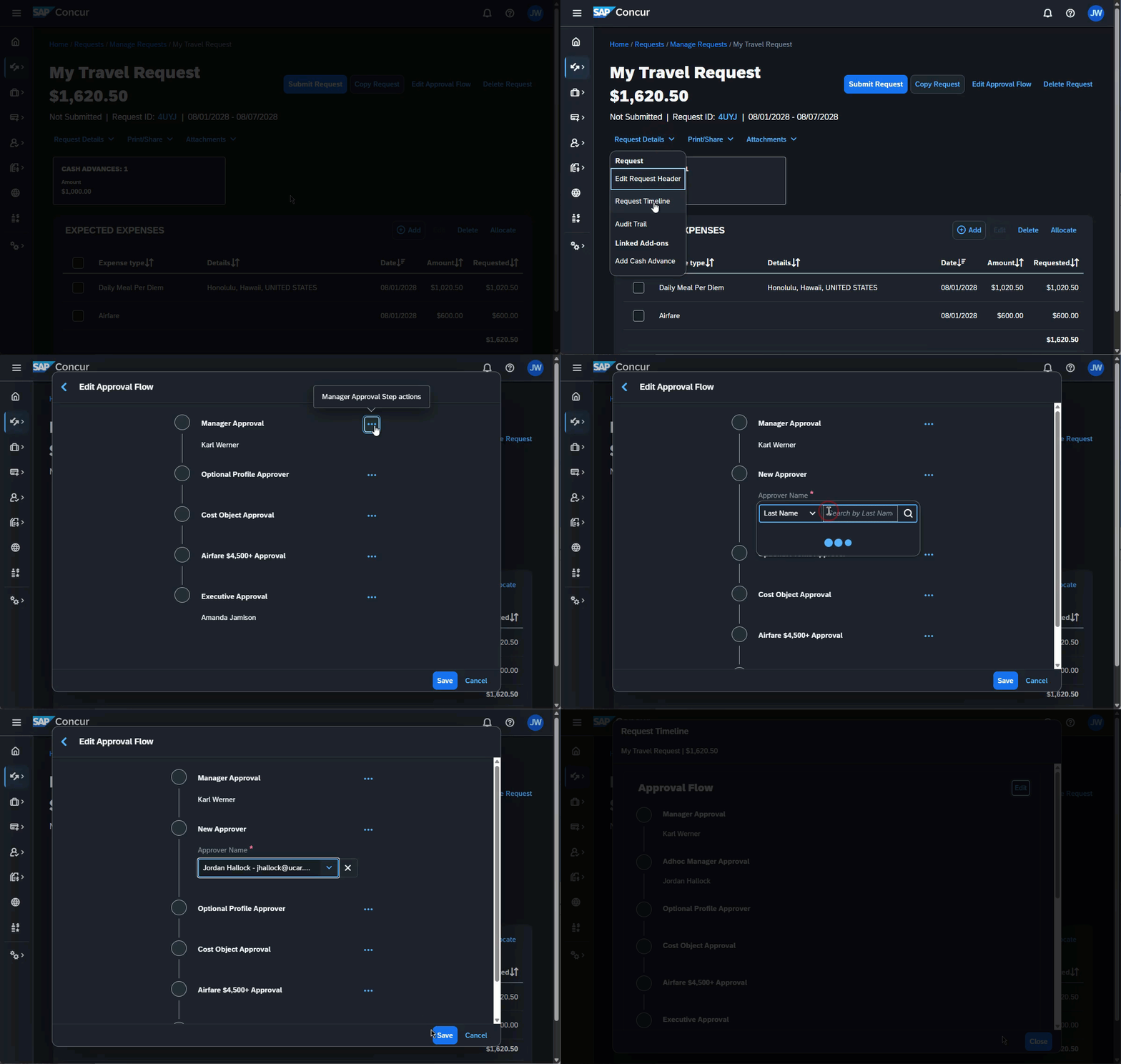
Ad hoc approvals are a great option when you'd like to add an approver to the workflow for an individual travel request or expense report and don't want to modify signature authority for all requests and reports going forward.
Usually, if you have access to the travel request or expense report, you can add ad hoc approvers to the timeline (workflow). This means the request/report owner, a delegate, and the approver can all add ad hoc approvers.
Limitations
You can add ad hoc approvers anywhere in the workflow after the current step and before Ready for Processing (Travel office approval). If the request/report has not yet been submitted, you can add the approver as the first step.
Add an Ad Hoc Approver to the Timeline (also known as Approval Flow or Workflow)
- Open the Timeline by clicking the Edit Approval Flow button or clicking Request Details > Request Timeline (if you are in Expense, use Expense Details > Expense Timeline).
- Click Edit in the top right corner of the Timeline window.
- Click the three-dot menu (•••) next to the step where you'd like to add an approval.
- Click Add above this step or Add below this step to add the approval in the desired position.
- Search for and select the desired approver. Click Save when you are done editing the approval flow.